


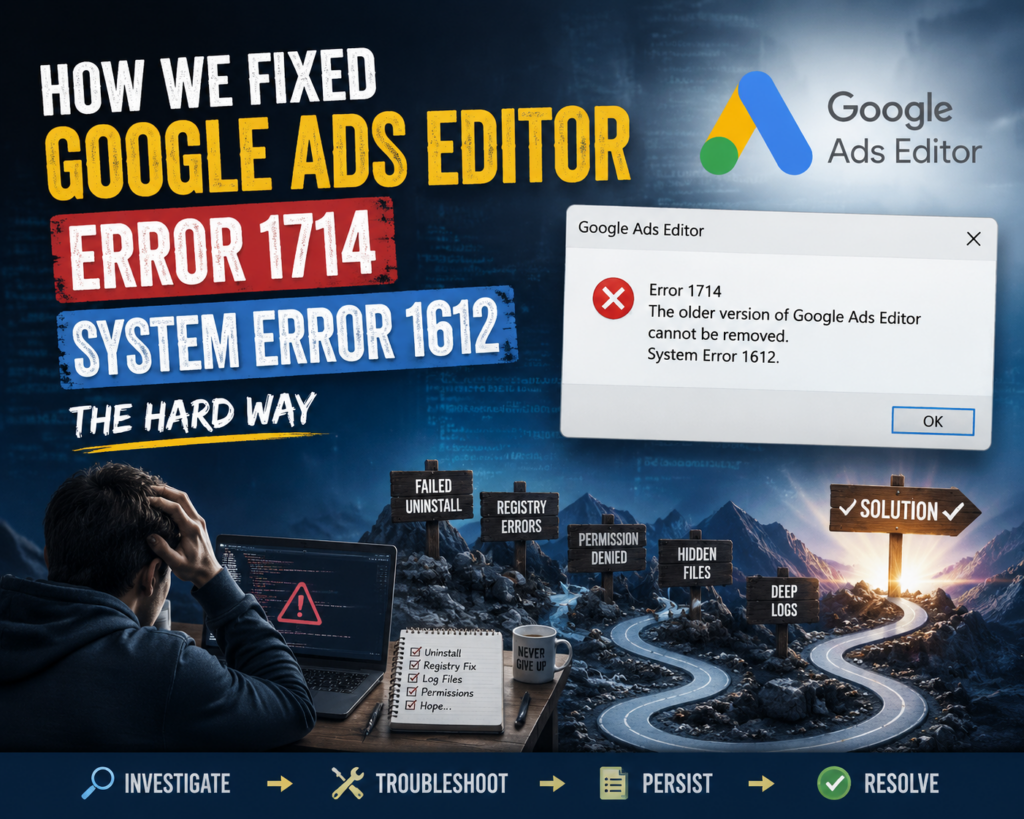
“The older version of Google Ads Editor cannot be removed. Contact your technical support group. System Error 1612.”
If you’ve landed here, you’ve probably already tried the obvious fixes. You’ve Googled the error, run the installer as Administrator, cleared your temp files, and maybe even tried Microsoft’s Program Install and Uninstall Troubleshooter. Nothing worked.
This post documents a real case we worked through — a full diagnostic journey from that first error dialog to a clean “Installation complete.” It took deep registry surgery to fix, and we’re publishing every step so you don’t have to spend hours figuring it out yourself.
What These Errors Actually Mean
- Error 1714 — Windows Installer found a previous version of Google Ads Editor and is trying to remove it before installing the new one. It failed.
- System Error 1612 — The original MSI installer package used to install the old version is no longer on the machine. Without it, Windows Installer can’t run the uninstall sequence.
The combination of these two errors means: Windows knows the old version exists, but has lost the ability to remove it.
What makes this particularly nasty is that the standard cleanup tools — Add/Remove Programs, WMI, the Microsoft troubleshooter — often can’t see the broken registration either. The record is orphaned in a location those tools don’t check.
The Standard Fixes (That Probably Won’t Work)
Before going nuclear, try these first. They resolve the issue for some people:
- Run the installer as Administrator — right-click → “Run as administrator”
- Download a fresh installer from ads.google.com/home/tools/ads-editor
- Run the Microsoft Install/Uninstall Troubleshooter from support.microsoft.com
- Try Revo Uninstaller in Forced Uninstall mode — revouninstaller.com
If none of those work, read on.
The Real Fix: Registry Surgery
This is what we actually did. All commands run in PowerShell as Administrator (right-click PowerShell → “Run as administrator”). To run multi-line scripts, either use PowerShell ISE (Win + R → powershell_ise) or save the script to a .ps1 file and run it.
Step 1 — Confirm the standard registry locations are empty
Google Ads Editor should appear in the standard uninstall registry. If it’s not there, that confirms the registration is corrupted or orphaned.
# Check standard uninstall registry
Get-ChildItem "HKLM:\SOFTWARE\Microsoft\Windows\CurrentVersion\Uninstall" |
    ForEach-Object { Get-ItemProperty $_.PSPath } |
    Where-Object { $_.DisplayName -like "*Google Ads*" }
In our case: nothing returned. The entry was gone.
# Check WMI (used by most uninstall tools)
Get-WmiObject Win32_Product | Where-Object { $_.Name -like "*Google Ads*" } | Select Name, IdentifyingNumber
Again: nothing. This is why standard tools can’t find or fix it.
Step 2 — Check the Windows Installer Products registry
Windows Installer keeps its own database, separate from the standard uninstall key. Check both the system account and your user account:
# Check system account (S-1-5-18)
Get-ChildItem "HKLM:\SOFTWARE\Microsoft\Windows\CurrentVersion\Installer\UserData\S-1-5-18\Products" |
    ForEach-Object {
        $props = Get-ItemProperty "$($_.PSPath)\InstallProperties" -ErrorAction SilentlyContinue
        if ($props.DisplayName -like "*Google Ads*") {
            Write-Host "Code: $($_.PSChildName)"
            Write-Host "Name: $($props.DisplayName)"
            Write-Host "Version: $($props.DisplayVersion)"
        }
    }
# Check your user account
$sid = (whoami /user).Split()[-1]
Get-ChildItem "HKLM:\SOFTWARE\Microsoft\Windows\CurrentVersion\Installer\UserData\$sid\Products" -ErrorAction SilentlyContinue |
    ForEach-Object {
        $props = Get-ItemProperty "$($_.PSPath)\InstallProperties" -ErrorAction SilentlyContinue
        if ($props.DisplayName -like "*Google Ads*") {
            Write-Host "Code: $($_.PSChildName)"
            Write-Host "Name: $($props.DisplayName)"
        }
    }
In our case: nothing in either location. The product record was completely absent.
Step 3 — Do a full registry search
Despite finding nothing in the standard locations, Windows Installer was still detecting the old version. We ran a full registry search:
reg query HKLM /f "Google Ads Editor" /s > C:\temp\ads_search.txt 2>&1
reg query HKCU /f "Google Ads Editor" /s >> C:\temp\ads_search.txt 2>&1
This returned thousands of orphaned component entries under HKLM\SOFTWARE\Microsoft\Windows\CurrentVersion\Installer\UserData\S-1-5-18\Components — files from multiple old versions (14.9.x, 14.11.x) that were never cleaned up. The component entries existed but had null product codes ({00000000-0000-0000-0000-000000000000}), meaning they weren’t attributed to any valid product.
Step 4 — Capture the installer’s MSI and get the UpgradeCode
Google Ads Editor’s .exe installer extracts a .msi file to a temp folder briefly before running it. We captured it mid-run:
Start-Process "C:\Users\[username]\Downloads\GoogleAdsEditorSetup.exe"
$deadline = (Get-Date).AddSeconds(30)
while ((Get-Date) -lt $deadline) {
    $msi = Get-ChildItem "$env:TEMP" -Filter "google_ads_editor.msi" -Recurse -ErrorAction SilentlyContinue |
        Sort-Object LastWriteTime -Descending | Select-Object -First 1
    if ($msi) {
        Copy-Item $msi.FullName "C:\temp\google_ads_editor_copy.msi" -Force
        Write-Host "Copied: $($msi.FullName)"
        break
    }
    Start-Sleep 1
}
Then queried the MSI for its UpgradeCode and new ProductCode:
$installer = New-Object -ComObject WindowsInstaller.Installer
$db = $installer.OpenDatabase("C:\temp\google_ads_editor_copy.msi", 0)

$view = $db.OpenView("SELECT Value FROM Property WHERE Property='UpgradeCode'")
$view.Execute()
Write-Host "UpgradeCode: $($view.Fetch().StringData(1))"

$view2 = $db.OpenView("SELECT Value FROM Property WHERE Property='ProductCode'")
$view2.Execute()
Write-Host "New ProductCode: $($view2.Fetch().StringData(1))"
Results:
- UpgradeCode:
{2C881436-87C2-4224-B264-38277EB91B37} - New ProductCode:
{1F133919-2D37-11F1-859C-ACE2D86FEB32}
Step 5 — Run the MSI directly with verbose logging to find the old product
Running the MSI with logging revealed exactly which old product the installer was detecting:
msiexec /i "C:\temp\google_ads_editor_copy.msi" /L*v C:\temp\install_log.txt /qn
Get-Content C:\temp\install_log.txt | Select-String "OLDPRODUCTS|Found application|\{[0-9A-F-]{36}\}"
The log showed:
PROPERTY CHANGE: Adding WIX_UPGRADE_DETECTED property. Its value is '{FE2C35E8-C1BE-11F0-A129-9AB01B1510A6}'.
SOURCEMGMT: Looking for sourcelist for product {FE2C35E8-C1BE-11F0-A129-9AB01B1510A6}
Old product code identified: {FE2C35E8-C1BE-11F0-A129-9AB01B1510A6}
Step 6 — Find where it’s actually registered
Windows Installer GUIDs are stored in a “packed” format (segments reversed). Here’s the function to pack a GUID:
function Pack-Guid {
    param([string]$guid)
    $g = $guid.Replace("{","").Replace("}","").Replace("-","").ToUpper()
    return ($g[7]+$g[6]+$g[5]+$g[4]+$g[3]+$g[2]+$g[1]+$g[0]+
            $g[11]+$g[10]+$g[9]+$g[8]+$g[15]+$g[14]+$g[13]+$g[12]+
            $g[17]+$g[16]+$g[19]+$g[18]+
            $g[21]+$g[20]+$g[23]+$g[22]+$g[25]+$g[24]+$g[27]+$g[26]+
            $g[29]+$g[28]+$g[31]+$g[30])
}

$packed = Pack-Guid "{FE2C35E8-C1BE-11F0-A129-9AB01B1510A6}"
Write-Host "Packed: $packed"
# Result: 8E53C2EFEB1C0F111A92A90BB151016A
We searched both HKLM and HKCU for this packed code:
reg query HKLM /f "8E53C2EFEB1C0F111A92A90BB151016A" /s > C:\temp\search_result.txt 2>&1
reg query HKCU /f "8E53C2EFEB1C0F111A92A90BB151016A" /s >> C:\temp\search_result.txt 2>&1
Get-Content C:\temp\search_result.txt
HKLM: nothing. HKCU returned three hits:
HKEY_CURRENT_USER\Software\Microsoft\Installer\Features\8E53C2EFEB1C0F111A92A90BB151016A
HKEY_CURRENT_USER\Software\Microsoft\Installer\Products\8E53C2EFEB1C0F111A92A90BB151016A
HKEY_CURRENT_USER\Software\Microsoft\Installer\UpgradeCodes\634188C22C7842242B468372E79BB173
This is the root cause. The old version was registered as a per-user MSI installation under HKCU\Software\Microsoft\Installer — a location that virtually no standard uninstall tool checks. The product record survived even after everything else was cleaned up, and was invisible to WMI, the Microsoft troubleshooter, Revo, and all standard registry searches under HKLM.
Step 7 — Delete the three orphaned keys
Remove-Item "HKCU:\Software\Microsoft\Installer\Products\8E53C2EFEB1C0F111A92A90BB151016A" -Recurse -Force
Remove-Item "HKCU:\Software\Microsoft\Installer\Features\8E53C2EFEB1C0F111A92A90BB151016A" -Recurse -Force
Remove-Item "HKCU:\Software\Microsoft\Installer\UpgradeCodes\634188C22C7842242B468372E79BB173" -Recurse -Force
Step 8 — Run the installer
Installation complete.
Why This Happens
Google Ads Editor uses Google’s own update infrastructure (GoogleUpdater) rather than a traditional Windows Installer setup. Over time, as the app updates itself, it can leave behind orphaned MSI registration records — particularly per-user install records under HKCU\Software\Microsoft\Installer — without properly cleaning them up.
When a new version tries to install, Windows Installer’s FindRelatedProducts action scans for any previously registered products sharing the same UpgradeCode. It finds the orphaned HKCU record, tries to remove it using the original MSI (which is long gone from the installer cache), and fails with 1612 — causing the entire install to abort with 1714.
The fix is surgical: identify the orphaned product code from the installer log, find its packed GUID equivalent, locate it in HKCU, and delete it.
Quick Reference — The Keys to Delete
If your Google Ads Editor install log shows the same old product code ({FE2C35E8-C1BE-11F0-A129-9AB01B1510A6}), these are the exact registry keys to remove:
HKCU\Software\Microsoft\Installer\Products\8E53C2EFEB1C0F111A92A90BB151016A
HKCU\Software\Microsoft\Installer\Features\8E53C2EFEB1C0F111A92A90BB151016A
HKCU\Software\Microsoft\Installer\UpgradeCodes\634188C22C7842242B468372E79BB173
You can delete them manually in regedit or with the PowerShell commands in Step 7 above.
Note: If your installer log shows a different old product code, you’ll need to follow Steps 4–6 to find the right packed GUID for your specific case. The process is the same; only the GUIDs differ.
Need Help?
If you’ve worked through this and are still stuck, contact us at Mobilize Cloud — we’re happy to help.